'How-to' guides
EBT Cardholder App
It’s simple to register and log in to the EBT Card App. With the app, you can check your balance, see transactions, and manage your card.
The EBT Card App (http://ebtcard.com.au/mobile) is available on Google Play store and Apple App store. You can also download it from www.ebtcard.com.au by clicking on the Download and register EBT Card App icon.
What you need to register:
- EBT ID *
- Username *
- Access to Mobile phone or emails (to receive an email verification code or SMS one-time passcode)
Follow the prompts to register your app.
The Terms and Conditions page will appear. You must read and accept to finish registration.
Once accepted, the App will open.
Please note: You must have provided an email address or mobile number to register.
(*The above information is provided in the email or SMS sent – if you do not have this information, call Services Australia via your main payment line (between 8.00 am to 5.00 pm, Monday to Friday).
For Apple Pay or Google Pay
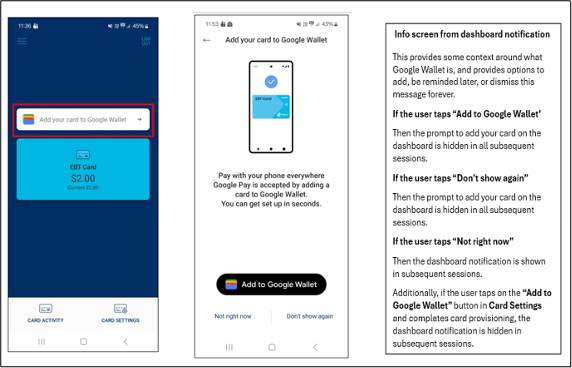
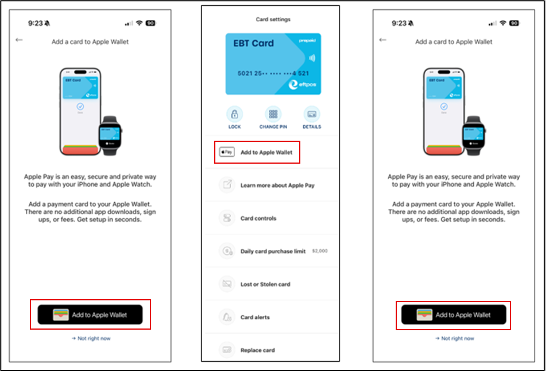
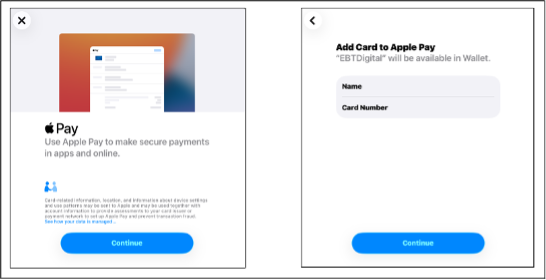
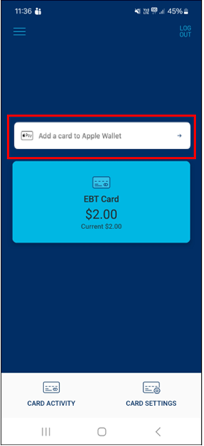
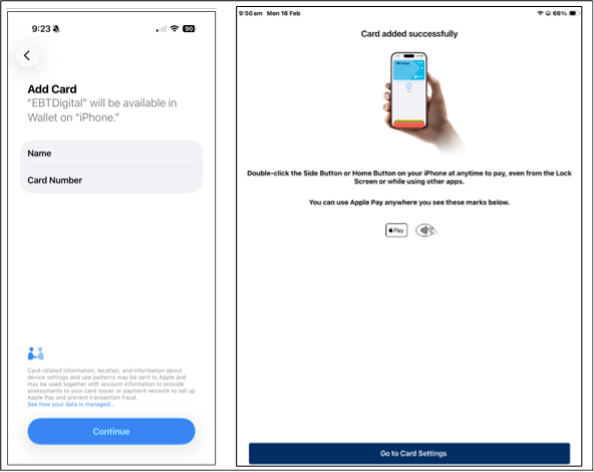
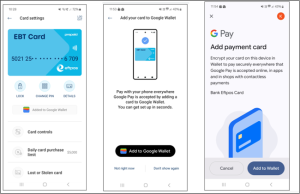
After you register and log in, you can add your card to your mobile wallet. Click on “Add your card to Google wallet or Add a card to your Apple Wallet”
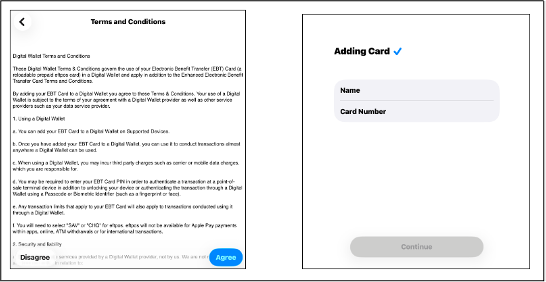
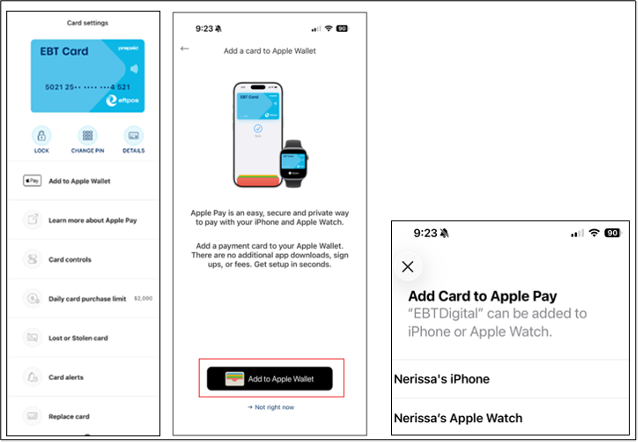
Follow the prompts to complete. When done, you’ll see a message: “Card added successfully.” Your EBT card will now appear in your Apple or Google wallet.
You do not have to add your card to your mobile wallet and can just click on “Not right now.” An option of ‘Add a card to Apple/Google Wallet’ will remain on the Home screen and Card settings screen when you log into the EBT Card App.
Google Wallet
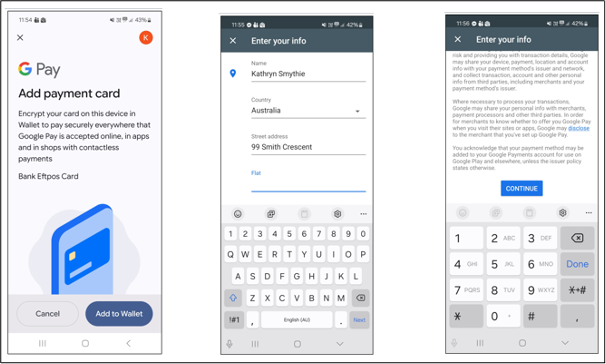
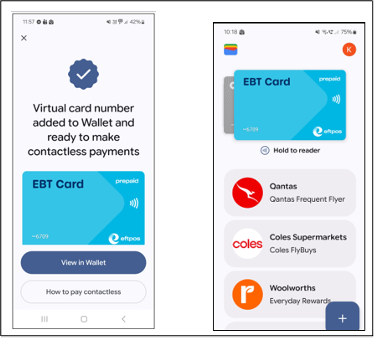
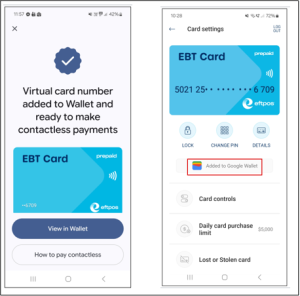
Once the card has been added, a screen will appear advising “Virtual card number added to Wallet and ready to make contactless payments.” You can now view the card in your Google Wallet.
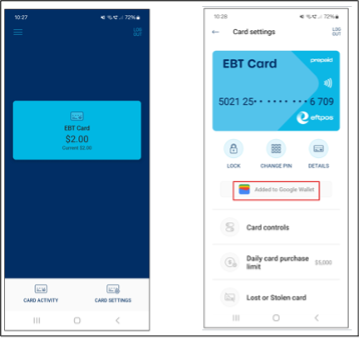
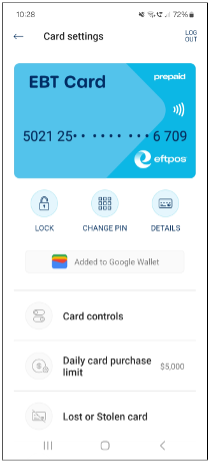
The ‘add to Goggle Wallet’ button will no longer be visible on the home screen, and you will now see under Card Settings a message that advises the card has been added to your Google Wallet.
Apple Wallet
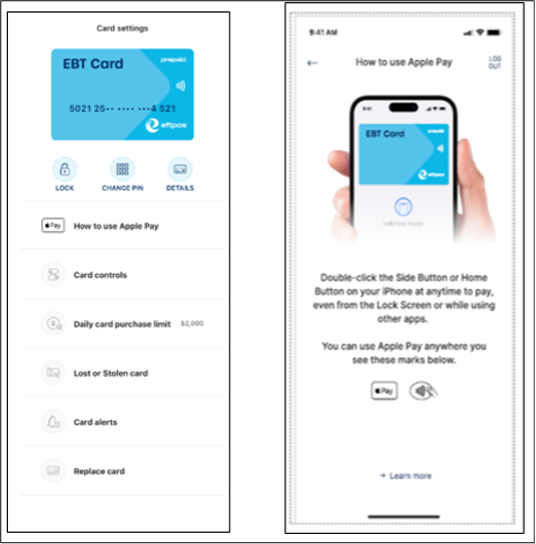
Once the card has been added, a screen will appear advising card added successfully, and on the Card settings screen it will now have “How to use Apple Pay.”
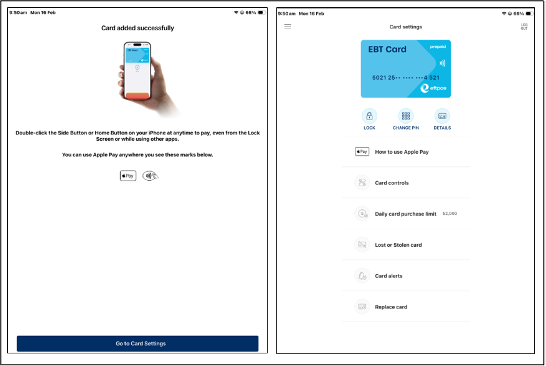
The ‘add to Apple Wallet’ button will no longer be visible on the home screen.
For Samsung pay, you need to manually add your EBT card by entering your card details into your Samsung Pay wallet.
How to check if your card is in your wallet?
Google wallet: Go to Card settings. The message “Added to Google Wallet” will appear.
Apple Wallet: Go to Card settings. You’ll see the Apple Pay icon and the text “How to use Apple Pay.”
If you chose not to add your card to your wallet at registration, you can complete this action at any time. Go to Card settings, choose Add to Apple Wallet or Add to Google Wallet, and follow the prompts.
You will be unable to use your digital card until it has been added to your wallet.
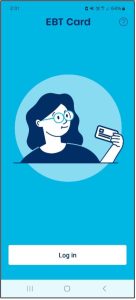
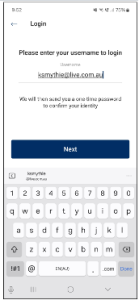
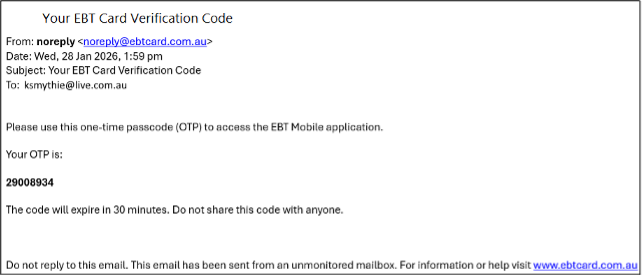
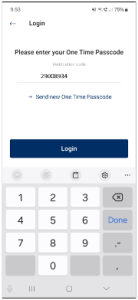
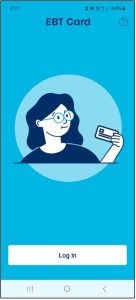
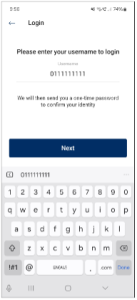
To log in, open the app and click Log in. Type your Username (email or mobile number) and an OTP (One Time Password) will be sent to either your email address or mobile number (SMS).
EMAIL ADDRESS
MOBILE NUMBER
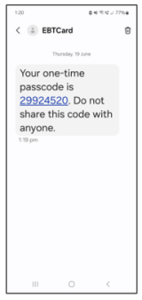
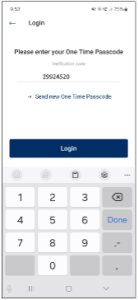
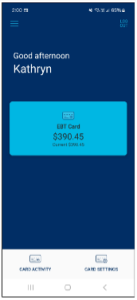
If at registration you selected “Not Now” and did not add your EBT Card to your Mobile Wallet, the option to add your card to a wallet will continue to show on the Home screen and Card settings screen.
If you now wish to add your card to your Apple or Google wallet, click on the “Add your card to Google Wallet or Add to Apple Wallet’ and follow the instructions.
Home Screen
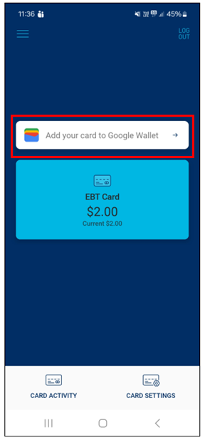
Card Settings screen
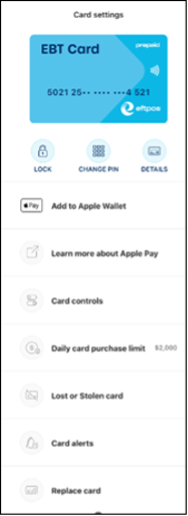
Apple Wallet
Google Wallet
You can add or remove shortcut icons for quicker navigation.
Click on the 3 lines (top left), then Settings → Dashboard shortcuts. Drag icons to the bottom of the screen. You can select up to four (4).
Available icons –
Card Alerts
Card Details
Card Settings
At the bottom of the dashboard screen the selected icons will now be displayed.
To remove an icon, click the red X.
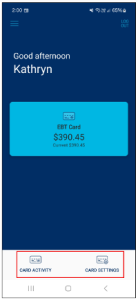
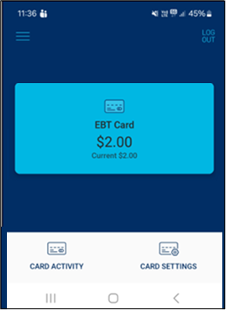
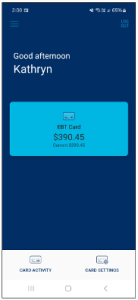
You can view your card balance on the dashboard screen located within the light blue box. It will display the available balance, and underneath will be the current balance.
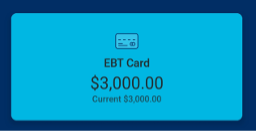
By clicking on this box you will be taken to the card transaction listing or go to Settings → My Card → Card details where you can view transactions, look at more detail and download.
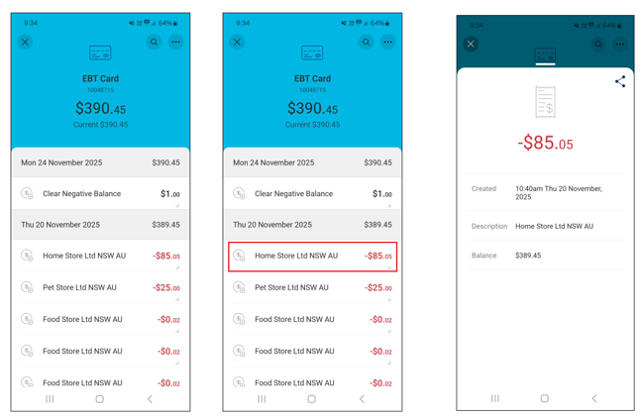
Export EBT card transactions as a CSV file:
Click the three (3) dots (top right). Select Export Transactions:
- 3 months
- 6 months
- 12 months
Choose one and click Export.
Or login to the EBT cardholder site to export card transactions as a PDF file.
Click on the three (3) lines in the top left corner of screen, from the list click on My Card and then Card settings.
Digital Card
Physical Card
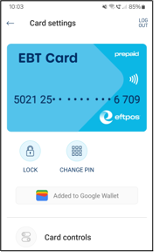
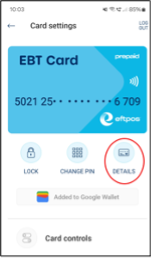
Options available:
- LOCK – to Block your card temporarily by selecting the padlock icon
- CHANGE PIN
- DETAILS (This is for digital card holders only and where you can view the digital cards PAN and expiry date)
LOCK OR UNLOCK YOUR CARD
If you misplace your card, you can temporarily lock your EBT card so no transaction can be made. Your card will remain locked until you unlock it.
- Click on Lock (opened padlock icon).
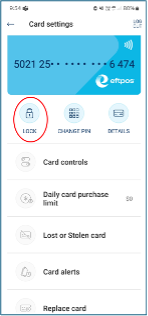
- A message will appear on screen, to continue click on LOCK otherwise click on CANCEL to exit.
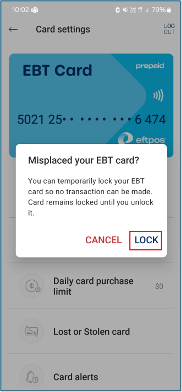
- When locked, on the Card settings screen the icon turns red (closed padlock) and shows Unlock. A closed padlock will also show on the card which appears grey.
- If added to a wallet, it will also be suspended.
- Your card will remain locked until you unlock it.
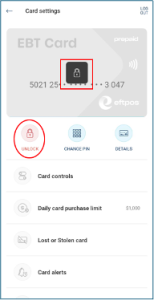
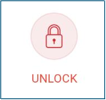
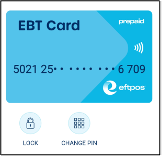
To unlock your card, click on Unlock, and icon will show on screen as an unlocked padlock again with the word lock. The padlock will also no longer appear over the card, which appears blue again.
CHANGE PIN
If you forgot your PIN or think someone else knows it, you can change it.
From Card settings screen –
- Select Change PIN.
- Enter a new 4-digit PIN and confirm (by entering new four (4) digit PIN again).
- Click Change.
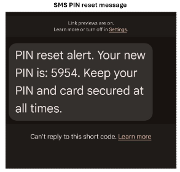
Alternatively, if you have a valid mobile number registered to your EBT card you can call Services Australia via your main payment line (between 8.00 am to 5.00 pm, Monday to Friday). A new PIN will be sent to your phone via SMS.
DETAILS
- Digital card: Select Details to view your card number and expiry.
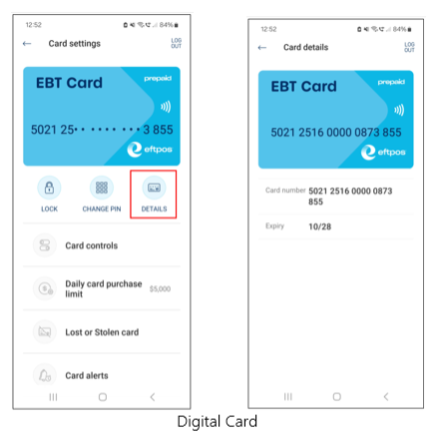
- Physical card: The ‘Detail’ button is not available on screen if you have a physical card. The full card details are available on your physical card and will not be visible in the app.
- Card controls
- Cash withdrawal
- Contactless payment
- Daily card purchase limit
- Lost or Stolen card
- Card alerts
- Replace card
Card Controls
You can use card controls to manage the way you spend using your EBT card. Simply restrict certain transactions by turning the control on and off (by sliding the toggle button).
For Physical cards, Contactless (Tap and Pay) functionality will be set to ‘off’ when your card is first issued. You will need to switch this functionality ‘on’ before you can use Contactless.
For Digital cards, Contactless (Tap and Pay) functionality will be set to ‘on’ when card is first issued and you can use it once your card has been added to a wallet.
You need to be aware that –
- For physical card, turning off Cash withdrawals will mean you will no longer be able to withdraw cash from ATMs/POS until the function is turned back on.
- For digital card, turning off Cash withdrawals will mean you will no longer be able to withdraw cash from POS until the function is turned back on.
- Turning off Contactless for physical cards, means you will no longer be able to use ‘tap and pay’ at POS devices but will need to insert your card and input your PIN until the function is turned back on.
- For digital card, turning off Contactless will prevent your EBT card from working until the function is turned back on.
- Cards added to wallets will not work without contactless functionality. Tap and Pay POS transactions cannot be performed using the wallet until the contactless function is turned
Daily card purchase limit
have the option to set up a ‘daily card purchase limit’ which restricts the value of transactions per day. This does not apply to ATM cash withdrawal limits which remain at a maximum of $1,000 per day subject to your available balance and any limits imposed by the ATM provider. However, it will include any cash out transactions performed at POS terminals.
The Daily Card Purchase Limit is the maximum amount you can spend in a calendar day.
The default daily limit is $5,000. You can choose to increase or decrease this amount.
From the Card settings screen, select the Daily purchase limit option.
On the Daily purchase limit screen, you can increase/decrease your limit from the list of predefined amounts of –
$100
$200
$500
$1,000
$2,000
$5,000
Once you have selected the value, click “update limit.”
The Daily purchase limit can be updated at any time and will be effective immediately.
There is no option for you to select/add your own limit amount e.g. $50 or $150.
Lost or Stolen card
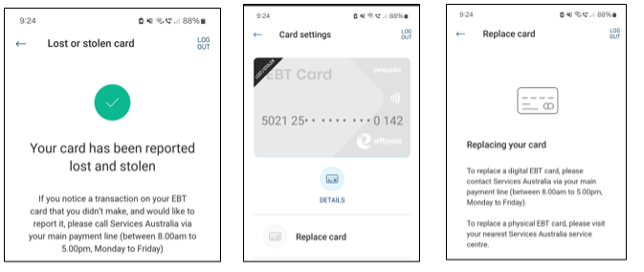
Blocking a lost or stolen card prevents it from being used. This is a security measure taken to protect your funds. This action cannot be reversed or undone.
To report your card as lost or stolen go to the Card Settings screen and select Lost or Stolen card.
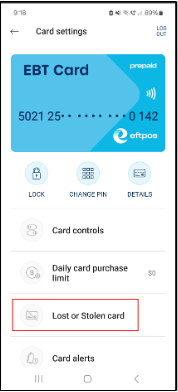
To complete the process, follow these two important steps:
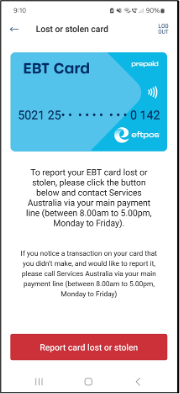
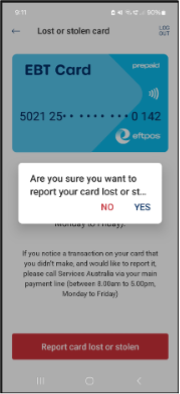
Go to Card Settings → Lost or Stolen card. Click Report card lost or stolen. Confirm with Yes or click on No if you do not wish to proceed.
If you selected Yes, contact Services Australia via your main payment line (between 8.00am to 5.00pm, Monday to Friday) or for physical cards visit your nearest service centre.
Replace Card
If your card has been damaged or does not work at POS or ATM, you will need to obtain a replacement card.
On the EBT Card App select Replace card on the Card settings screen and follow the steps provided to obtain a replacement card.
To replace a physical EBT card, please visit your nearest Services Australia service centre.
To replace a digital EBT card, contact Services Australia via your main payment line (between 8.00 am to 5.00 pm, Monday to Friday).
Unauthorised Transactions
If you notice a transaction on your card that you didn’t make, and would like to report it, call Services Australia via your main payment line (between 8.00 am to 5.00 pm, Monday to Friday).
Card alerts
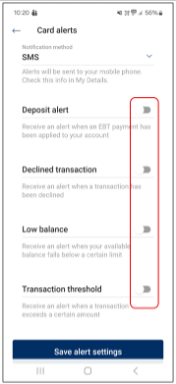
You can set up a range of card alerts on your EBT card to help manage and protect your funds.
Notification alerts will be sent via Email or SMS.
If both your email address and mobile number is registered against your card, you can choose your preferred method by clicking on the drop-down.
Available alerts are:
- Deposit alert – This is when additional funds have been deposited to your EBT Card.
- Low balance – This is when the available balance on the EBT card reaches the amount you have set.
- For Low balance alerts, choose: $50 / $100 / $500 / or enter another value.
- Transaction threshold – This is when a transaction is over the amount you have set.
- For Transaction alerts, choose: $50 / $100 / $500 / or enter another value.
- Declined transaction – is when a transaction has been declined. This alert is only available if you have selected SMS as your preferred channel.
You can now choose which alert/s you wish to set up.
Move the toggle button next to the alert name to turn on/off.
Click on the three (3) lines in the top left corner of screen, from the list click on My details, you can then view these details:
- First name
- Last name
- Date of birth
- Mobile
To update your details, call Services Australia via your main payment line (between 8.00 am to 5.00 pm, Monday to Friday).
- Get in touch
- Dispute a transaction
- FAQs
- Provide feedback
- Visit Website – ebtcard.com.au
Dispute a transaction
If you see a transaction on your EBT card that’s unfamiliar or incorrect, and you’ve tried to contact the merchant without being able to resolve the issue, you can call Services Australia via your main payment line (between 8.00am to 5.00pm, Monday to Friday)
Provide feedback
If you would like to provide feedback or submit a complaint about the EBT card, you can call Services Australia via your main payment line (between 8.00am to 5.00pm Monday to Friday) or go to servicesaustralia.gov.au/complaints-and-feedback/
For access to our complaints and dispute resolution process go to https://www.indue.com.au/wp-content/uploads/2023/10/Indue-Complaints-and-Internal-Dispute-Resolution-Process_website.pdf
Click on the 3 lines in the top left corner of screen, from the list click on Settings, you will have the following options –
- Timeout settings
- Dashboard shortcuts
- App details
- Reset app
Timeout settings
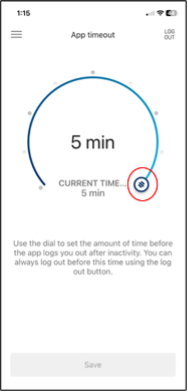
The EBT Card App will timeout after 5 minutes (this is the default and maximum time) of idle time (where you have not touched the screen or performed any actions).
You can reduce the timeout period to 4, 3, 2 or 1 minute.
From the Settings Menu, click on Timeout settings.
The default setting of 5 minutes will be showing. You can ‘dial’ the time down by clicking and holding the circle and moving the time up and down. Once the desired time has been selected, click on save. You will receive a confirmation message advising ‘Your timeout settings have been changed.’
You can increase/decrease this setting at any time.
App details
Shows the app and device information.
Reset app
Resetting this app will remove your saved settings from this device.
The next time you launch the app, you will need to log in again and reset your preferences.
If you want to de-register your details you will need to close your EBT card. You can do this by contacting Services Australia on your main payment line (between 8.00am to 5.00pm – Monday to Friday)
From the EBT Card log in screen you can click on the  (question mark) in the top right corner for Info & support.
Call Us – Call Services Australia via your main payment line (between 8.00am to 5.00pm, Monday to Friday)
Or
Go to
servicesaustralia.gov.au/contact-us
for more information
Visit Website – click on Visit Website which will take you to the public EBT Card website.
EBT Cardholder Site
It’s simple to register for the EBT Cardholder Site, where you will be able to view card balances and transactions activity as well as manage card functions. Registration to the cardholder site is optional.
Go to www.ebtcard.com.au/customer-registration or www.ebtcard.com.au/cardholdersite
From here select Register for the EBT Cardholder site, to set up your online access.
Please note: You will need to have provided an email address or mobile number to be able to register for the Cardholder site.
On the Signup screen you will need to enter the following details:-
- EBT ID – This is provided in the Welcome Email or SMS
- Username – This can be your email address or mobile phone number
- Password –Create your own password. It must be at least 13 characters in length, contain at least one number, and upper-case and lower-case letters
- Confirm password
- Press Submit
The EBT Card Terms and Conditions page will be displayed. You need to read and accept to complete registration.
Once Terms and Conditions have been accepted, the EBT Cardholder site will open.
Once registered, to log into the EBT Cardholder site:
- enter the URL www.ebtcard.com.au/cardholder/login
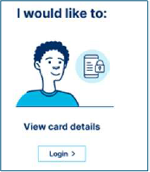
- at View card details click on ‘Log in’.
At the Log in screen, enter the following details –
- Username – this will be your email address or mobile phone number, as set up at registration.
- Password – As set up at registration.
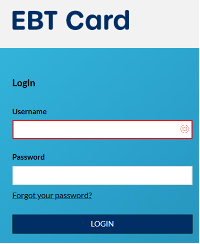
Your Cardholder site username is either your email address or mobile phone number provided when access to the EBT card was established with Services Australia.
If you have tried both and are still unable to log in, you can contact Services Australia for further assistance –
- Call Services Australia via your main payment line (between 8.00am to 5.00pm, Monday to Friday).
If you have forgotten your password for EBT Cardholder site, you can complete a password reset from the Login screen. Enter your Username, and under the Password box click on Forgot your password?
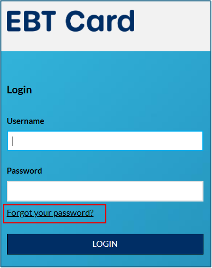
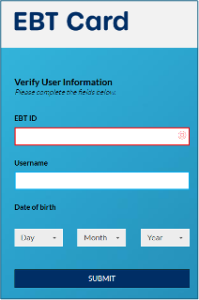
You will be required to answer a set of authentication questions –
- EBT ID
- Username
- Date Of Birth
All 3 questions must be answered correctly to proceed.
If details are entered incorrectly, you will see: ‘Invalid details. Please check and verify your details before trying again’.
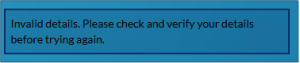
You have 6 attempts to enter the required details correctly before you will be suspended for 15 minutes.
Once the suspended period has elapsed, you can attempt to complete the password reset.
If you are unable to answer the required questions, please contact Services Australia via your main payment line (between 8.00 am to 5.00 pm, Monday to Friday) for further assistance.
Once questions have been answered correctly, an OTP (One Time Passcode) will be triggered and sent to your email or SMS.
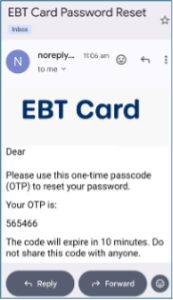
This passcode will need to be entered on screen to reset the password.
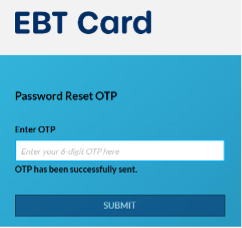
The OTP (One Time Passcode) will be 6 digits.
The OTP is valid for 30 minutes.
Please note:
- You have 6 attempts at entering the OTP correctly before the cardholder site is locked.
- You will be locked out for 15 minutes.
- A message will appear on the screen advising ‘You have reached the maximum limit of attempts. Please try again after 15 minute(s)’.
- After this period the counter is reset, which means you will have 6 more attempts at unlocking the account.
Once the OTP has been entered correctly the customer will need to create a new password.
Passwords must be at least 13 characters in length, contain at least one number, and upper cases and lower case letters.
On the My Card Screen the current and available balances will be visible.
Current Balance – This is the total of all funds on the EBT Card, including any *pending transactions.
Available Balance – Is the amount available to spend.
*Pending Transaction – If the Available balance is different to the Current balance, it may be due to a portion of your funds being set aside for a pending transaction. When a transaction is authorised, it is confirming to the merchant the card is valid and there is money available on the EBT Card to pay for what is being purchased.
The transaction amount is then deducted from the available funds, not the current balance.
The transaction will show as pending on your EBT Card until the Merchant completes the payment process/settlement.
On the My Card screen the Card Number and Expiry Date will be displayed.
Card Number (PAN – Primary Account Number) for EBT Card is 19 Digits.
If you have a physical card, the full card number (PAN) is not visible and will be masked with only the first 6 and last 4 digits visible. You can find the full card number (PAN) on the back of the physical card.
If you have a digital card, the full card number (PAN) will be visible on this screen.
Card Expiry is the date shown on screen at the end of the Card Number.
Cards will not be automatically renewed once expired.
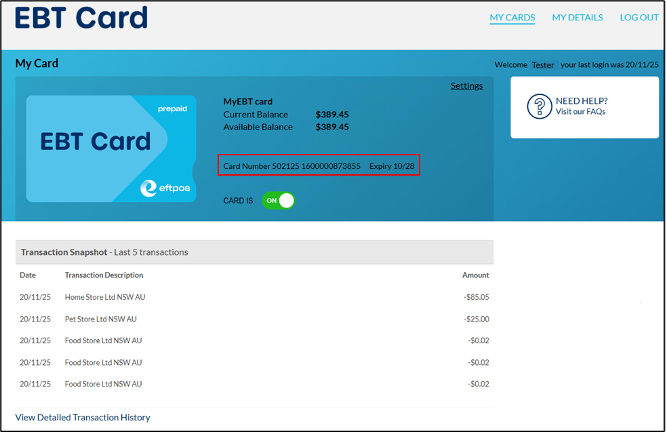
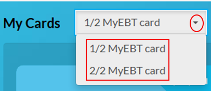
If you have had multiple cards (previous cards closed/lost/stolen), this will show next to My Cards, top left as 1 / 2 or 1 / 3 MYEBT card and a drop down option.
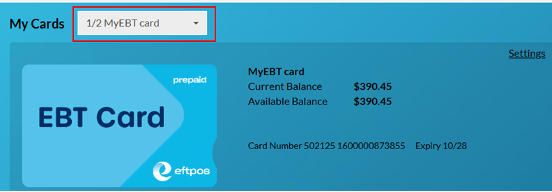
Note the cards are listed in order e.g. card 1 / 2 will be the first card that was issued and has been closed, so the active card will be 2 / 2.
Click on the drop down arrow to choose active card.
You can identify which card is the active card as the ‘CARD IS (ON/OFF)’ information is only visible on the screen for Active cards.
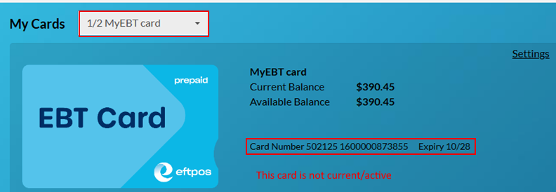
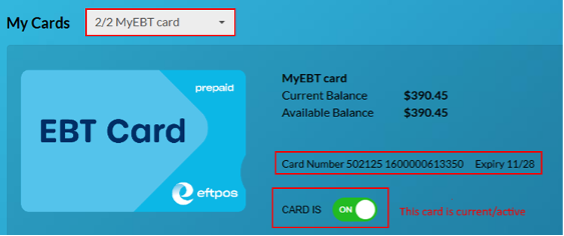
Remember whenever you log into the EBT Cardholder site to always select your Active card from the dropdown menu.
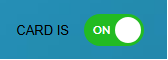
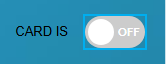
On the My Card screen the current Card Status will be displayed as either CARD IS ON (Active), or CARD IS OFF (Inactive).
If your card is temporarily misplaced or has been left somewhere and you are able to retrieve it later, you can change the status of the card to ‘OFF’ (Inactive) to prevent anyone else from using your card.
Clicking the ON/OFF icon will change the status of the card.
Once the card is located, change the status back to ‘ON’ (Active) so you can continue to transact.
If the EBT card has been added to a Mobile Wallet turning the card to OFF (inactive) will also disable the Mobile Wallet, preventing it from being used until the status of the card is switched back to ON.
Once the card is ‘ON’ (active) again the token will return to active, and Mobile Wallet is able to be used.
On the My Card screen, under the heading ‘Transaction Snapshot’ you can view the last 5 completed transactions.
To view more/older transactions, go to the bottom of the My Card screen click on ‘View Detailed Transaction History’.
From here you can obtain a list of transactions by –
- Current view – lists all transactions by most recent first or
- Date Range – if looking for a specific transaction and you have the exact date or date range it was completed.
Transaction List can be exported in either PDF or Excel format.
Once all cards have been closed, you will no longer be able to access Cardholder site or Card APP so will no longer have visibility of card transactions.
For assistance with transaction enquiries after the card has been closed, contact Services Australia via your main payment line (between 8.00am to 5.00pm, Monday to Friday).
If you see a transaction on your EBT card that’s unfamiliar or incorrect, and you’ve tried to contact the merchant without being able to resolve the issue, you can call Services Australia via your main payment line (between 8.00am to 5.00pm, Monday to Friday).
On the Cardholder site, Dashboard Name is displayed on the My Cards screen above Current Balance. It is defaulted as ‘My EBT card’.
To customise the name, on the My Card screen click on Settings, located to the right of the Dashboard Name.
Click Change Card Name.
Enter the new name over the default name ‘My EBT card’ For example, ‘Rebecca’s Card’ and click on the Finish button.
Your new card name will be visible immediately on the MY CARDS screen.
You can switch Contactless Transactions (Tap and Pay) feature on or off.
Contactless (Tap and Pay) feature is set to OFF when a physical card is activated.
Note: For Digital Cards (only) Contactless (Tap and Pay) feature is set to ON when activated.
To change, on the MY CARDS screen click on Settings, located to the right of the Dashboard Name.
Under Transaction Settings on screen, click on change settings.
This will display what the current Contactless setting is.
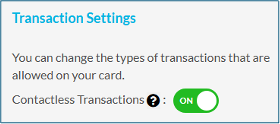
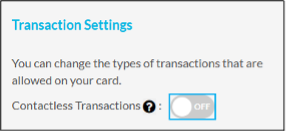
If Contactless (Tap and Pay) Transactions is showing as OFF (Gray shading), to switch ON (Green shading), click the OFF Icon and it will change to ON.
The change is made immediately.
To switch back OFF, click the ON Icon and it will switch Contactless Transactions off.
Note:
If Contactless is OFF, any payments with your mobile wallet will be declined until Contactless is turned back ON.
To block a lost or stolen card, from the MY CARDS screen click on Settings, located to the right of the Dashboard Name, then under Block Lost or Stolen Card, click Block Card and then click on LOST OR STOLEN, the screen will appear again for confirmation to proceed by clicking on LOST OR STOLEN.
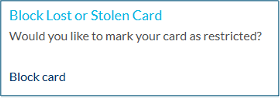
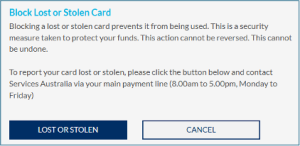
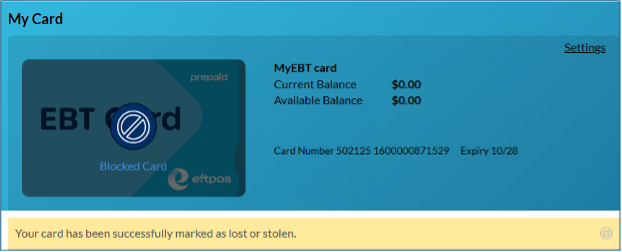
The card has now been blocked, and this action cannot be reversed; you will see a message on the MY CARDS screen that advises ‘Your card has been successfully marked as lost or stolen’.
If you have added a physical EBT card to a mobile wallet, you can continue to use this to complete purchases until your card is replaced.
Contact Services Australia on your main payment line (between 8.00am to 5.00pm, Monday to Friday) or visit a Services Australia service centre to obtain a new card.
If you have temporarily misplaced or left your physical card somewhere and can retrieve it, it is best to update the card status from ON/Active to OFF/Inactive (refer above).
If you have lost your mobile phone and your physical or digital only EBT Card was added to your Digital Wallet, log onto your Digital Wallet account through iCloud or your Google account and remove the EBT Card from your Digital Wallet.
You should also block your card on the Cardholder site and report this to Services Australia IMMEDIATELY, via your main payment line (between 8.00am to 5.00pm, Monday to Friday.
If you have a physical EBT card, your card will remain active, but the token will be removed from the Wallet so no one else can use your EBT Card if they were to find your mobile phone.
If your physical card is damaged or lost/stolen and needs replacing, you will need to visit a Services Australia service centre to obtain a new physical card.
If a digital card needs replacing either call Services Australia via your main payment line (between 8.00am to 5.00pm, Monday to Friday) or visit a Services Australia service centre.
To set or change Card PIN, on the MY CARDS screen click on Settings, located to the right of the Dashboard Name.
Click Set your Card PIN (Personal Identification Number).
Enter the new PIN and confirm new PIN.
Enter your password (this is the password used when logging into the Cardholder site).
Click on the Finish button, the system will update the PIN.
The Daily Card Purchase Limit is the maximum amount you can spend in a calendar day.
The default daily limit (and maximum limit) is $5,000. You can choose to increase or decrease this amount.
To change the daily card purchase limit, from the MY CARDS screen click on Settings, located to the right of the Dashboard Name.
Click on Change daily card purchase limit.
Select one of the preset values available on screen ($100; $200; $500; $1,000; $2,000 or $5,000) to increase/decrease the daily card purchase limit to. Note that these are the only options available, there is no option to select own value.
Click on the value of limit and click on FINISH.
This change will occur immediately.
If you increase your limit, you also increase your potential liability in the case of an unauthorised transaction.
Note: this limit is for POS purchases only and does not include ATM withdrawals. For example, you set your Daily Card Purchase Limit to $200. You purchase groceries for $50 and then withdraw $100 cash from an ATM, you will still have $150 of your daily limit remaining for POS purchases.
However, if you complete a POS transaction and as part of that transaction withdraw cash, the total value of the transaction including the cashout will be counted towards the Daily Card Purchase Limit. For example, you purchase groceries for $80 and request cashout of $120 as part of the transaction. The total $200 will be counted towards your Daily Card Purchase Limit.
To set up/manage alerts, from the MY CARDS screen click on Settings, located to the right of the Dashboard Name.
Alert Types available are:
- Declined transactions – this alert is only available if you have selected SMS as your preferred channel. This alerts whenever a transaction has been declined.
- Payment Deposit – this alerts when funds have been deposited to your EBT Card.
- Low balance – This alerts when the card’s available balance reaches the amount you have set.
- Transaction threshold – This alerts when a transaction is over the amount you have set.
Click on Manage Alerts.
Deposit and Declined transactions alert are set by clicking in the box next to the alert name.
For Low Balance and Transaction threshold alert, click on the preset value available ($50; $100; $500) or click on Other and type in the value you want set.
Once alert value has been selected click FINISH to save.
To remove an alert that has been set but no longer required, click on Manage alerts and click on the highlighted value (or type 0 for other amount) and click on FINISH to save.
Notification Type – if you have only registered one form of communication (i.e. email or mobile phone) then this will be the only notification method available.
If you have registered both email address and mobile phone number, you can choose to receive alerts by email or by SMS.
Under Notify me it will show how Notifications are being sent, click on the drop-down menu and choose the delivery method of either email or SMS.
If you do not have your email or mobile phone registered and that delivery method is chosen, you will receive an error message stating ‘No mobile number has been set for receiving alerts’ or No Email has been set for receiving alerts’ and you will be unable to change to that delivery method.
From the top right corner on the MY CARDS screen click on MY DETAILS.
On the My Details screen, under Account Access Details, Password click on Change.
Input your Current Password and then add your New Password and confirm New Password (insert again).
Click on SAVE.
Your password must be at least 13 characters long and contain at least one upper case and one lower case letter, and at least one number.
At the top right of the My Card there is a choice of options, MY CARDS; MY DETAILS and LOG OUT.
Click on MY DETAILS to display details associated with this card.
- Account Access Details
- Username
- Email Address
- Password
- Your Details
- Title (if provided during registration)
- First Name
- Last Name
- Date of Birth
- Contact
- Home Phone (if provided during registration)
- Mobile
- Address
- Correspondence Address
- Residential Address
You can only update your password.
For all other details, contact Services Australia via your main payment line (between 8.00am to 5.00pm, Monday to Friday) to discuss updating/changing any other details.